

What Is MS Word 2013?
Microsoft Word 2013 is a word-processing application included in the Microsoft Office 2013 suite. It is used to create, edit, format, save, and print different types of documents.
With MS Word 2013, you can create letters, applications, reports, resumes, assignments, notices, and many other documents. A document can contain text, pictures, tables, charts, graphics, shapes, and other elements.
Microsoft Word provides several formatting options to make documents attractive and professional. You can change font styles and sizes, format paragraphs, apply colors, insert page borders, adjust page layouts, and use predefined styles.
Word 2013 allows you to save documents in different file formats. Its default format is .docx, while .doc is commonly associated with older versions of Microsoft Word. You can also save or export documents as PDF files.
Main Features of MS Word 2013
Some important features of Microsoft Word 2013 are explained below.
1. Creating and Editing Documents
You can create a new document or open an existing document to make changes. You can type, delete, copy, cut, paste, and rearrange text as required.
2. Text Formatting
Word provides different formatting tools to improve the appearance of text. You can change the font, size, color, and style of text. You can also apply bold, italic, underline, and text highlighting.
3. Paragraph Formatting
You can align paragraphs to the left, center, right, or justify them. Word also provides options for line spacing, paragraph spacing, indentation, bullets, and numbering.
4. Inserting Pictures and Tables
You can insert pictures, tables, shapes, charts, SmartArt graphics, and other objects into a document. These elements help present information clearly.
5. Page Layout
Word allows you to change page margins, orientation, paper size, columns, and page borders. These settings help you prepare documents for printing.
6. Spell Check and Grammar Tools
Word includes spelling and grammar checking tools that help identify possible writing errors. The suggestions available depend on the language and proofing settings.
7. Saving and Printing
You can save documents on your computer or another available storage location. Word also provides print settings and Print Preview so you can check the document before printing.
8. Templates and Styles
Word includes templates for creating documents such as resumes, letters, and reports. Styles help you apply consistent formatting to headings and paragraphs.
How to Start Microsoft Word 2013
There are different ways to start Microsoft Word 2013. The following methods are suitable for Windows computers where Word 2013 is installed.
Method 1: Using the Run Command
Follow these steps to start MS Word 2013 using the Run dialog box.
Press Windows Key + R on your keyboard.
The Run dialog box will appear.
Type
winwordin the text box.Press Enter or click OK.
Microsoft Word will open if it is installed and available on your computer.
Method 2: Using the Start Menu
Follow these steps:
Click the Start button.
Select All Programs or All Apps, depending on your version of Windows.
Open the Microsoft Office folder, if it is available.
Click Microsoft Word 2013.
The exact menu names may vary depending on the Windows version and how Office was installed.
Method 3: Using a Desktop Shortcut
If a Microsoft Word shortcut is available on your desktop, double-click it to open the application.
You can also search for Word using the Windows Start menu search box and select the application from the results.
MS Word 2013 Window
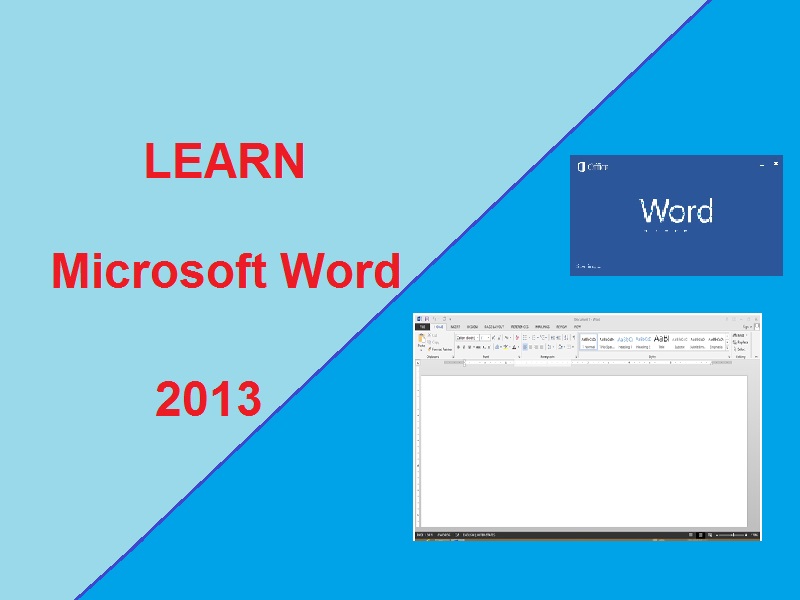
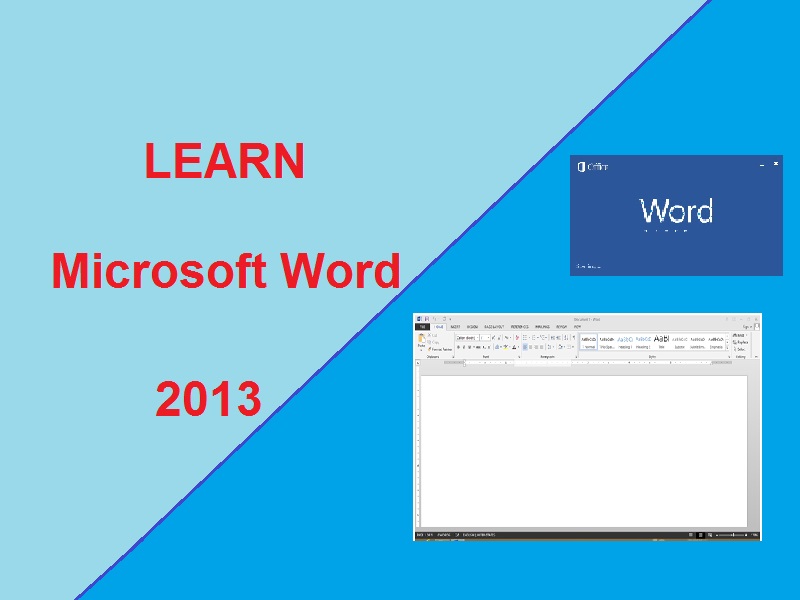
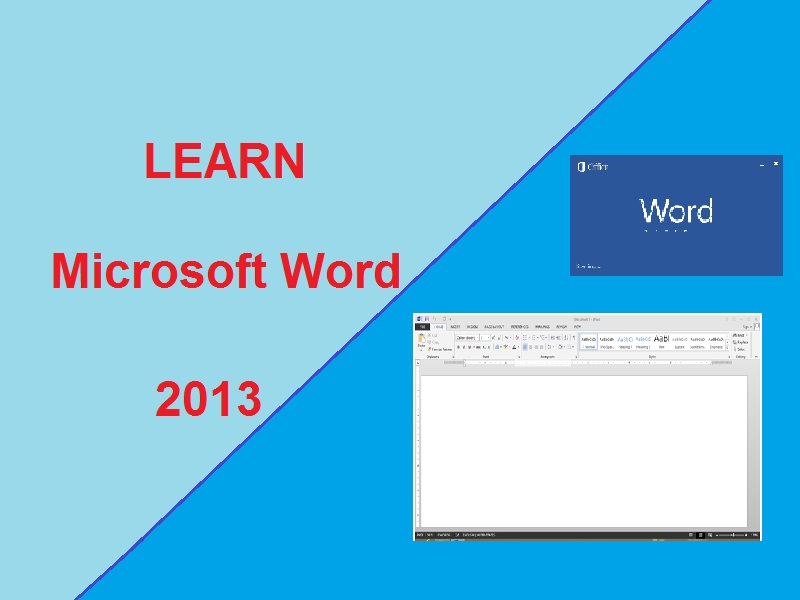
When you open Microsoft Word 2013, the application may display the Start screen, where you can choose a blank document or a template. After opening a document, the Word window displays the document editing interface.
The main components of the Word window include:
Title Bar: Displays the document name and application information.
Quick Access Toolbar: Provides shortcuts to frequently used commands such as Save, Undo, and Redo.
File Tab: Opens options for creating, opening, saving, printing, and managing documents.
Ribbon: Contains tabs and commands for editing and formatting.
Document Area: The main workspace where you type and edit content.
Ruler: Helps adjust paragraph indentation and other layout measurements.
Scroll Bars: Help you move through the document.
Status Bar: Displays information such as page number and word count.
Zoom Slider: Changes the magnification of the document on your screen.
For a detailed explanation of these components, read our tutorial: MS Word 2013 Screen Components.
How to Create a New Document in MS Word 2013
After opening Microsoft Word, you can create a new document by following these steps:
Click the File tab.
Select New.
Choose Blank Document or select a suitable template.
Start typing in the document area.
Format the text according to your requirements.
You can also use the keyboard shortcut Ctrl + N to create a new blank document.
How to Save a Document in MS Word 2013
Saving a document helps you keep your work for future use.
Click the File tab.
Select Save As if you are saving the document for the first time.
Choose the location where you want to save it.
Enter a file name.
Select the required file type, if necessary.
Click Save.
You can use the keyboard shortcut Ctrl + S to save changes to the current document.
The default Word document format is .docx. If you need to share your document in a format that is easy to view and print, you can also save or export it as a PDF.
Conclusion
Microsoft Word 2013 is a useful word-processing application for creating and formatting documents. It provides tools for text editing, paragraph formatting, inserting pictures and tables, adjusting page layout, checking spelling, and printing documents.
Learning how to start Word, create a new document, save your work, and use the Ribbon is a good foundation for learning more advanced features.
In the next tutorial, you can learn about the different MS Word 2013 screen components and how they help you work with documents.
0 Comments
Be the first to share your thoughts.