
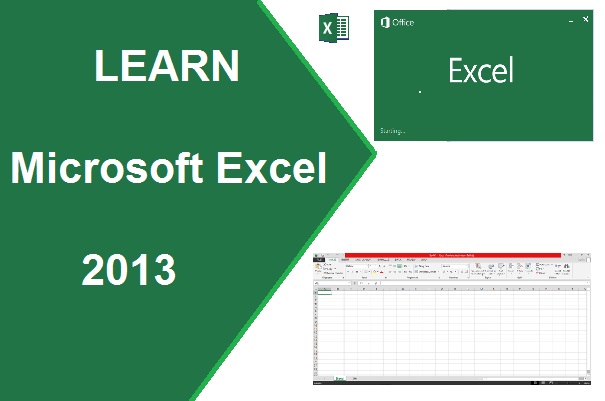
What Is MS Excel 2013?
Microsoft Excel 2013 is a spreadsheet application included in the Microsoft Office 2013 suite. It is used to store, organize, calculate, analyze, and present data in a tabular format.
Excel allows you to manage a large amount of information in rows and columns. You can perform simple as well as complex calculations using formulas and functions.
Microsoft Excel is useful for preparing mark sheets, timetables, salary slips, budgets, invoices, attendance records, reports, and many other types of documents.
It also provides tools to search for records, sort and filter data, and create different types of charts. These features help users understand large amounts of data quickly and efficiently.
Excel 2013 allows you to save a workbook in different file formats. Its default workbook format is .xlsx, while .xls is commonly used by older versions of Excel. You can save your workbook at a suitable location on your computer.
Main Features of MS Excel 2013
Microsoft Excel 2013 provides many features for working with data. Some of its important features are described below.
1. Workbook and Worksheet
An Excel file is called a workbook. A workbook can contain one or more worksheets.
A worksheet consists of rows and columns, which form individual cells. You can enter text, numbers, dates, and formulas into these cells.
2. Formulas and Functions
Excel provides formulas and built-in functions to perform calculations.
For example, you can use the SUM function to calculate the total of a range of numbers.
Example:
=SUM(A1:A10)
This formula adds the values in cells A1 through A10.
To learn more, read our tutorial on Formulas and Functions in Excel 2013.
3. Data Sorting
Sorting allows you to arrange data in a particular order, such as alphabetically or from smallest to largest.
For example, you can sort student records by name, roll number, or marks.
4. Data Filtering
Filtering helps you display only the records that meet specific conditions.
For example, you can filter a student mark sheet to display only students who scored more than a specified number of marks.
5. Charts and Graphs
Excel provides different types of charts to present data visually.
You can create column charts, bar charts, line charts, pie charts, and other supported chart types. Charts help you compare values and identify trends.
6. Tables
You can organize data in tables to make it easier to manage, format, sort, and filter.
For example, an employee table may contain employee IDs, names, departments, and salaries.
7. Formatting
Excel provides formatting options to change font styles, font sizes, colors, borders, number formats, and cell backgrounds.
You can use these options to make a worksheet easier to read and understand.
8. Find and Replace
The Find feature helps you locate particular text or values in a worksheet. Replace allows you to substitute one value or text entry with another.
These features are especially useful when working with large datasets.
9. Page Layout and Printing
Excel allows you to adjust margins, page orientation, paper size, print areas, and scaling before printing a worksheet.
These settings help you prepare reports and tables for printing.
How to Start Microsoft Excel 2013
There are different ways to start Microsoft Excel 2013 on a Windows computer where Excel 2013 is installed.
Method 1: Using the Run Command
Follow these steps to open Excel using the Run dialog box.
Press Windows Key + R on your keyboard.
The Run dialog box will appear.
Type
excelin the text box.Press Enter or click OK.
Microsoft Excel will open if it is installed and available on your computer.
Method 2: Using the Start Menu
Follow these steps:
Click the Start button.
Select All Programs or All Apps, depending on your Windows version.
Open the Microsoft Office folder, if available.
Click Microsoft Excel 2013.
The exact menu names may vary depending on your Windows version and Office installation.
Method 3: Using a Desktop Shortcut
If an Excel shortcut is available on your desktop, double-click it to open the application.
You can also search for Excel using the Windows Start menu search box and select Microsoft Excel from the results.
MS Excel 2013 Window
When you open Excel 2013, the application may display the Start screen, where you can select a blank workbook or a template. After opening a workbook, Excel displays the main spreadsheet interface.
The main components of the Excel window include:
Title Bar: Displays the workbook name and application information.
Quick Access Toolbar: Provides shortcuts to commands such as Save, Undo, and Redo.
File Tab: Contains options for creating, opening, saving, printing, and managing workbooks.
Ribbon: Contains tabs and commands for working with spreadsheet data.
Name Box: Displays the address of the selected cell and can be used to navigate to a specific cell or range.
Formula Bar: Displays the contents or formula of the selected cell and allows you to edit it.
Column Headings: Identify columns using letters such as A, B, C, and so on.
Row Headings: Identify rows using numbers such as 1, 2, 3, and so on.
Active Cell: The currently selected cell where you can enter or edit data.
Worksheet Area: The grid of rows and columns where you work with data.
Sheet Tabs: Help you move between worksheets in a workbook.
Status Bar: Displays information about the worksheet and may show calculations such as Sum, Average, and Count for selected cells.
Zoom Slider: Changes the magnification of the worksheet on your screen.
How to Create a New Workbook in Excel 2013
Follow these steps to create a new workbook:
Open Microsoft Excel 2013.
Click Blank Workbook on the Start screen.
Alternatively, click the File tab, select New, and choose Blank Workbook.
A new workbook will open.
Enter your data into the cells of the worksheet.
Save the workbook when you are ready.
You can also use the keyboard shortcut Ctrl + N to create a new workbook.
How to Enter Data in Excel 2013
Entering data into Excel is simple.
Open a blank workbook.
Click the cell where you want to enter data, such as A1.
Type a value, text, or date.
Press Enter to complete the entry.
Continue entering data into other cells as needed.
For example, you can create a student mark sheet with columns for Roll Number, Student Name, English, Mathematics, and Total Marks.
How to Save a Workbook in Excel 2013
Saving your workbook allows you to access your data later.
Click the File tab.
Select Save As if you are saving the workbook for the first time.
Choose the location where you want to save it.
Enter a file name.
Select the required file format, if necessary.
Click Save.
You can use Ctrl + S to save changes to the current workbook.
The default Excel workbook format is .xlsx. If you need to share your data with users of older Excel versions, you may choose the .xls format where appropriate.
Conclusion
Microsoft Excel 2013 is a powerful spreadsheet application used to store, organize, calculate, and analyze data. It provides features such as formulas, functions, sorting, filtering, tables, charts, and formatting tools.
Learning how to start Excel, create a workbook, enter data, and save your work is the first step toward using the application effectively.
Once you understand the basic screen components, you can learn more advanced topics such as formulas and functions, cell references, charts, and data analysis.



0 टिप्पणियाँ
सबसे पहले अपने विचार लिखें।